Introduction
Photoshop Actions: Creating a Diffused Cinematic Look Introduction
Autumn provides a beautiful backdrop for outdoor portraits of people, dogs and horses. The rich colours, golden light and changing foliage can create wonderful opportunities for atmospheric imagery. However, these same conditions can present some challenges, particularly when balancing vibrant autumn colours with the natural tones of skin and fur.
Strong colours can easily become overpowering, distracting attention from the subject, while harsh sunlight can introduce unwanted highlights and deep shadows. Achieving a natural balance between the subject and the surrounding environment often requires careful consideration, both when taking the photograph and during post-processing.
So, if you want to give your images a soft, diffused, cinematic appearance or create the feeling of a scene from a storybook, where do you begin?
I hope this article provides some useful guidance and encourages you to experiment with the seven Photoshop Actions I’ve made available to download at the bottom of this post.
What Mood Are You Trying to Create?
Before opening Photoshop, I believe the first question to ask yourself is a simple one:
What mood do you want your image to convey?
Are you aiming for something warm, romantic and dreamy? Perhaps you prefer a darker, more atmospheric and moody appearance? Or maybe something in between?
Personally, I enjoy creating images with a cinematic quality or a storybook feel. I like my photographs to have a little something different about them, rather than looking like straightforward digital captures.
I appreciate that my approach to post-processing is a matter of personal preference and won’t appeal to everyone. Photography, like all forms of art, is subjective, particularly when it comes to editing. What one photographer considers beautifully atmospheric, another might regard as overly processed.
Neither interpretation is necessarily wrong. What matters is developing a style that reflects your own creative vision.
I’ve come to describe my preferred approach as Diffused Cinematic Diffusion.
For me, this is about creating images with soft highlights, gentle tonal transitions, carefully controlled colours and an atmospheric quality that draws the viewer into the scene. The aim isn’t simply to apply an effect, but to create a particular feeling.
What Is Diffused Cinematic Photography?
Although Photoshop and a well-designed Action can transform an image, achieving a convincing cinematic diffusion effect involves more than post-processing alone.
It begins with good camera craft, a basic understanding of light and an appreciation of how colour, contrast and composition influence the final photograph.
Understanding both natural and artificial light is particularly valuable. The direction, quality and intensity of light can have a significant impact on the atmosphere of an image. Soft, directional light, for example, can provide a beautiful starting point for portraits with a cinematic feel.
Post-processing then allows you to refine that atmosphere.
Photoshop’s layers, layer masks, blend modes and opacity controls are all important tools in this process. They give you the flexibility to introduce subtle changes, control where an effect appears and protect areas of the image that need to retain their natural appearance.
The best results usually come from combining these techniques rather than relying on a single preset or Action.
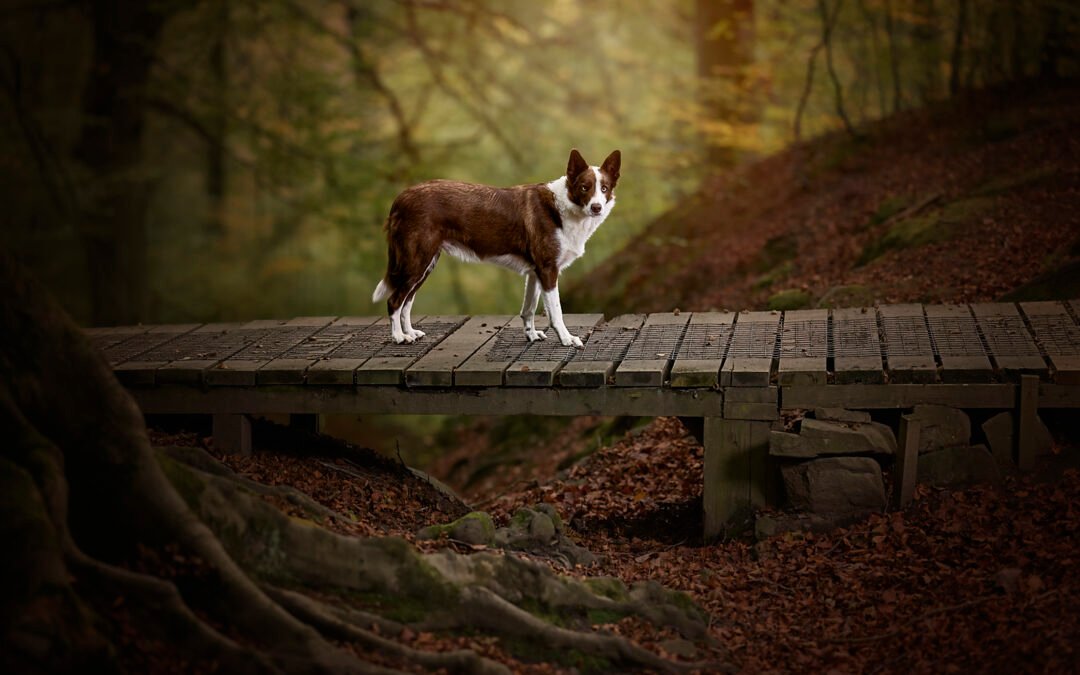
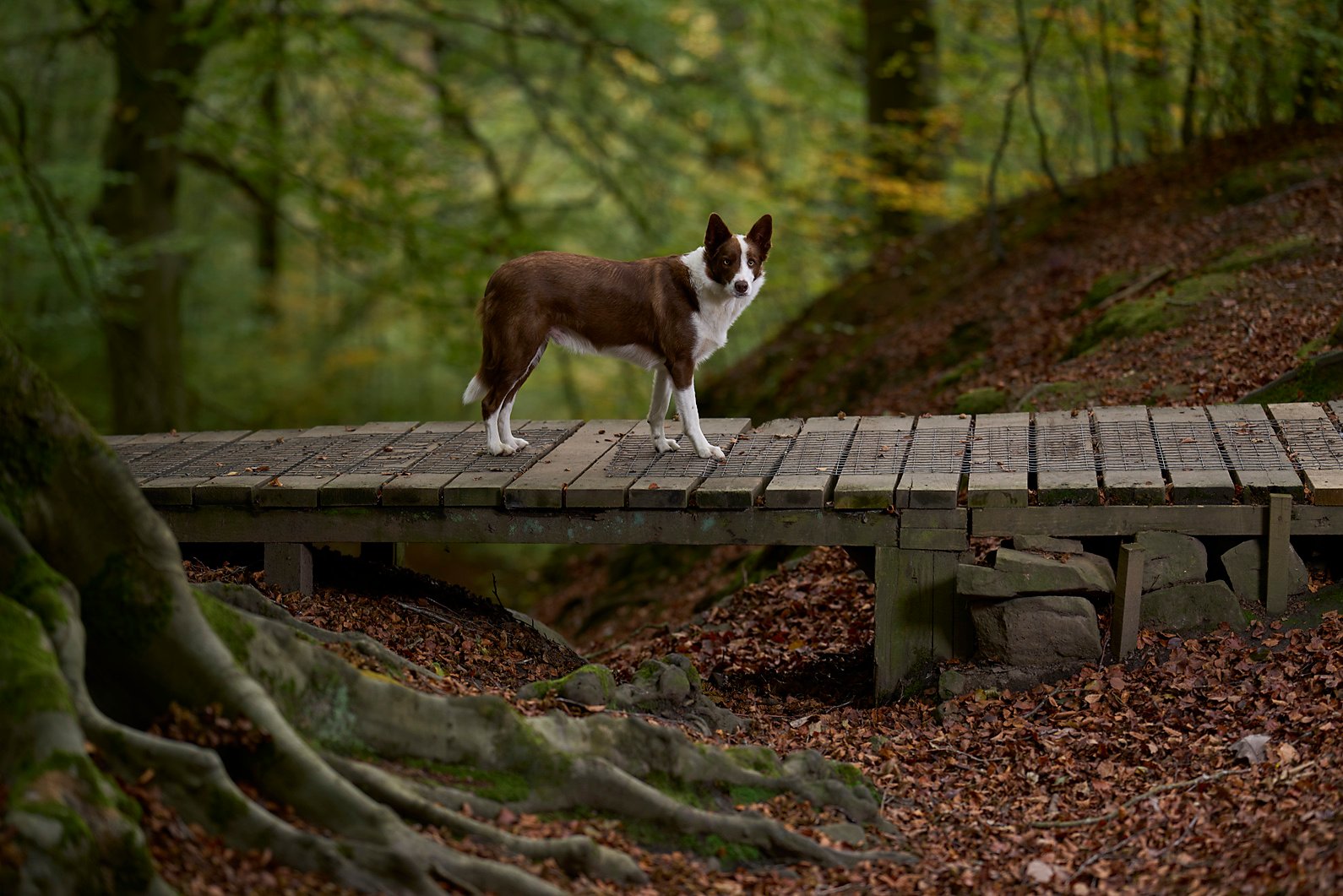
Before And After Image Processing
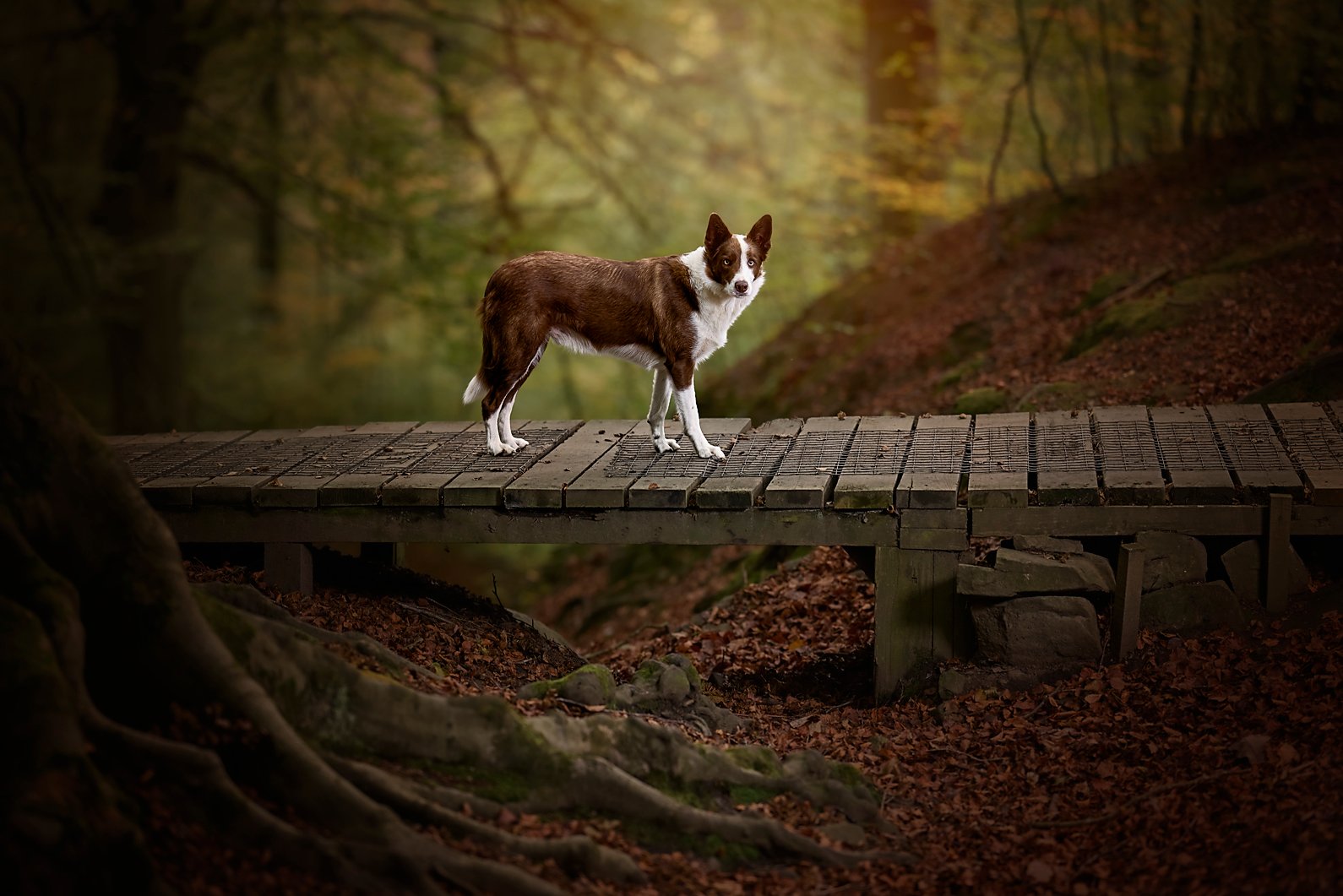
Introducing My Diffused Cinematic Photoshop Actions
Cinematic colour grading and diffusion effects can make a real difference to outdoor portraits, particularly when working with autumn foliage, woodland settings and open landscapes.
When used thoughtfully, they can help create softer highlights, more harmonious colours and a greater sense of depth and atmosphere.
Photoshop Actions are a convenient way to reproduce a series of editing steps automatically. Depending on how an Action is constructed, it may adjust colour balance, contrast, tonal curves, saturation or other image properties to achieve a particular look.
Diffusion effects can also introduce a soft glow around bright areas, helping to recreate some of the visual characteristics associated with film photography and cinematic imagery.
However, it’s important to remember that an Action cannot recover every lost highlight or correct every lighting problem. Its effectiveness depends on the original photograph, the lighting conditions and the way the effect is applied.
A treatment that works beautifully on one image may look completely different on another
I’ve uploaded seven Photoshop Actions at the bottom of this article for you to download and experiment with. You’ll also find instructions explaining how to install them in Photoshop.
I encourage you to try them on a variety of images, particularly outdoor portraits, and see how each treatment influences the mood and overall appearance of your photographs.
Don’t be afraid to experiment. The objective is to find what works for your image, not to force every photograph into the same look.
What Can Cinematic Grade Actions Do?
Let’s look at some of the ways cinematic grading and diffusion techniques can enhance outdoor portraits.
- Soften the Appearance of Harsh Highlights
Outdoor photography often involves working with changing light conditions. Direct sunlight can produce bright highlights, strong contrast and deep shadows, particularly when photographing subjects beneath trees or against a bright sky.
Diffusion effects can introduce a gentle glow around brighter areas, sometimes referred to as bloom or halation. These terms describe related but distinct visual effects associated with the way light can appear to spread or glow in photographic images.
Used carefully, they can soften the transition between bright highlights and surrounding tones, giving an image a gentler, more atmospheric appearance.
It’s worth noting that adding a glow doesn’t restore detail in highlights that are already completely blown out. For that reason, getting the exposure right in-camera remains important.
- Create Mood Through Colour Grading
Colour plays a significant role in how we interpret a photograph.
Warm golden tones can create feelings of comfort, romance and nostalgia, while cooler shadows and muted colours can introduce a more dramatic or cinematic atmosphere.
One familiar cinematic approach is the use of complementary teal and orange tones. Cooler colours are introduced into selected shadows, while warmer tones are retained or emphasised in brighter areas and skin tones.
This can help separate the subject from the background and create a more cohesive colour palette.
However, this approach needs particular care when photographing people, dogs and horses in autumn.
The natural colours of skin and fur can easily become oversaturated or take on unwanted colour casts. Similarly, autumn foliage already contains strong yellows, oranges and reds, so excessive grading can quickly make an image look artificial.
The key is to use colour selectively and maintain a natural relationship between the subject and the environment.
- Soften Digital Contrast
Digital photographs can sometimes appear overly crisp or contrasty, particularly when captured in harsh light.
A cinematic treatment may soften the overall contrast, gently compress the tonal range and lift the deepest blacks to create a subtle matte appearance.
Highlights can be reduced, shadows adjusted and transitions between tones made less abrupt.
The result can feel softer and more painterly, with less of the hard-edged appearance associated with some digital images.
However, reducing contrast too aggressively can make a photograph look flat or muddy. The aim is to create a more controlled tonal range while retaining enough contrast to preserve depth, texture and definition.
How Matte Actions Can Enhance Outdoor Portraits
Matte effects are particularly useful when you’re looking to create a soft, nostalgic or cinematic finish.
A matte look is often characterised by lifted black levels, subdued contrast and a gentler tonal response. Depending on the treatment, it may also incorporate subtle colour grading.
Here are some of the ways matte effects can work well in outdoor portrait photography.
Soften the Overall Appearance
When a photograph contains strong sunlight, deep shadows or distracting areas of contrast, a matte treatment can help soften its overall appearance.
It won’t remove the underlying lighting problems, but it can make the tonal transitions feel less harsh and help the image look more cohesive.
Introduce a Cinematic or Storybook Feel
Matte finishes can give photographs a nostalgic, editorial or film-inspired quality.
Combined with gentle diffusion, carefully controlled highlights and complementary colours, they can help create the dreamy, atmospheric appearance often associated with cinematic portraits and illustrated storybooks.
The strength of the effect is important. A subtle treatment can enhance the mood without overwhelming the photograph itself.
Unify the Colour Palette
Outdoor environments can contain a wide range of competing colours, especially during autumn.
Bright orange leaves, yellow grasses, green foliage and blue skies can all compete for attention within a single frame.
A carefully applied matte treatment can help bring these colours together by reducing excessive saturation, softening contrast and introducing subtle colour harmonies.
The result is often a more unified image in which the subject feels naturally connected to the surrounding environment.
Draw Attention to the Subject
One of the most useful aspects of a controlled matte treatment is its ability to reduce the visual impact of distracting background elements.
Bright leaves, reflective patches of light and areas of excessive contrast can draw the viewer’s eye away from the main subject.
By softening these distractions, you can help direct attention towards the person’s face or the expression of an animal.
This is particularly effective in woodland portraits, where dappled sunlight and brightly coloured foliage can otherwise dominate the composition.
Best Practices for Using Matte Photoshop Actions
Although Photoshop Actions can be a useful starting point, applying them at full strength doesn’t always produce the best results.
Here are a few practical tips to help you achieve a more natural finish.
- Adjust the Opacity
A matte effect that looks attractive at full strength can sometimes leave an image looking washed out, muddy or lacking in contrast.
If the Action creates editable layers, try reducing the opacity of the relevant effect layer. As a starting point, you might experiment with an opacity between 30% and 50%, although the ideal setting will depend on the photograph and the Action itself.
Don’t treat these figures as fixed rules. Some images may benefit from a stronger effect, while others require only a very subtle adjustment.
The important thing is to retain the qualities that made the original photograph appealing.
- Protect the Subject’s Eyes and Skin
Matte and diffusion effects can sometimes reduce the definition that gives a portrait its impact.
On people, excessive softening can make skin appear flat and eyes lose their natural sparkle. On animals, it can diminish the definition around the eyes, nose and facial features.
This is where layer masks become particularly useful.
If your Action creates a separate effect layer, you can use a layer mask to reduce the effect selectively over important details while retaining it elsewhere.
For human portraits, you might preserve more definition around the eyes and lips. For dogs and horses, you can retain detail around the eyes, muzzle and other defining features.
The aim is to balance atmosphere with clarity, allowing the subject to remain the focal point of the photograph.
- Apply Matte Effects Primarily to the Background
Personally, I tend to use matte Actions primarily on the background rather than applying the same treatment indiscriminately across the entire image.
I want the environment to have that soft, atmospheric quality while retaining the natural appearance, texture and definition of my subject.
This approach is especially useful when photographing people, dogs and horses against colourful autumn backgrounds.
By treating the background separately, I can soften distracting foliage, reduce competing colours and create a more cinematic atmosphere without unnecessarily altering skin tones or the natural colours of fur.
There isn’t a single correct way to approach this. Some photographs benefit from a consistent treatment across the entire frame, while others work better when the subject and background are processed independently.
The important thing is to make deliberate choices based on the photograph in front of you.
My preference is to create atmosphere in the background while keeping the subject as natural and engaging as possible.
How to Install Photoshop Actions
Installing custom Photoshop Actions is straightforward.
The seven Actions supplied with this article are provided in a ZIP file. Before installing them, you’ll need to extract the contents so that you can access the .atn Action file.
Method 1: Load Actions Through the Actions Panel
This is a straightforward way to load an Action set into Photoshop.
- Download the ZIP file containing the Photoshop Actions.
- Extract the ZIP file on your computer. Locate the .atn file inside the extracted folder.
- Open Adobe Photoshop and display the Actions panel. Depending on your workspace, you may find it under Window > Actions.
- Open the Actions panel menu by clicking the menu icon in the upper-right corner of the panel.
- Select Load Actions from the menu.
- Locate the extracted .atn file, select it and click Load or Open, depending on your operating system.
- Find your new Action set in the Actions panel. It should now be available for you to expand and use.
Once loaded, open a suitable photograph, select the Action you want to try and click the Play button at the bottom of the Actions panel.
It’s always good practice to work on a duplicate layer or a copy of your original photograph so that you can compare the results and make adjustments without losing your starting image.
Note: Photoshop’s interface can vary between versions, so the exact appearance of the Actions panel and its menu may differ slightly.
Final Thoughts
Creating a diffused cinematic look isn’t simply about applying an Action and hoping for the best.
It’s about understanding the relationship between light, colour, contrast and atmosphere, then using the tools available in Photoshop to bring those elements together.
For me, the appeal lies in creating photographs that feel a little different from a straightforward digital image. I enjoy the softness, mood and storytelling quality that carefully controlled diffusion and colour grading can introduce.
However, every photograph presents its own challenges. An Action that works beautifully with soft woodland light may require considerable adjustment when used on an image captured in strong sunshine.
Experimentation is part of the process. Try different Actions, adjust their opacity, work with layer masks and pay attention to how each treatment affects the subject as well as the background.
Above all, don’t feel that you have to follow a particular style or set of rules. Photography is a creative process, and post-processing is an opportunity to develop your own visual identity.
I hope you enjoy experimenting with the seven Diffused Cinematic Photoshop Actions provided with this article. I’d encourage you to try them on a range of outdoor portraits and discover which treatments best suit your own photographic style.
Sometimes, a few subtle adjustments are all it takes to transform an ordinary photograph into something that feels atmospheric, expressive and almost like a scene from a storybook.
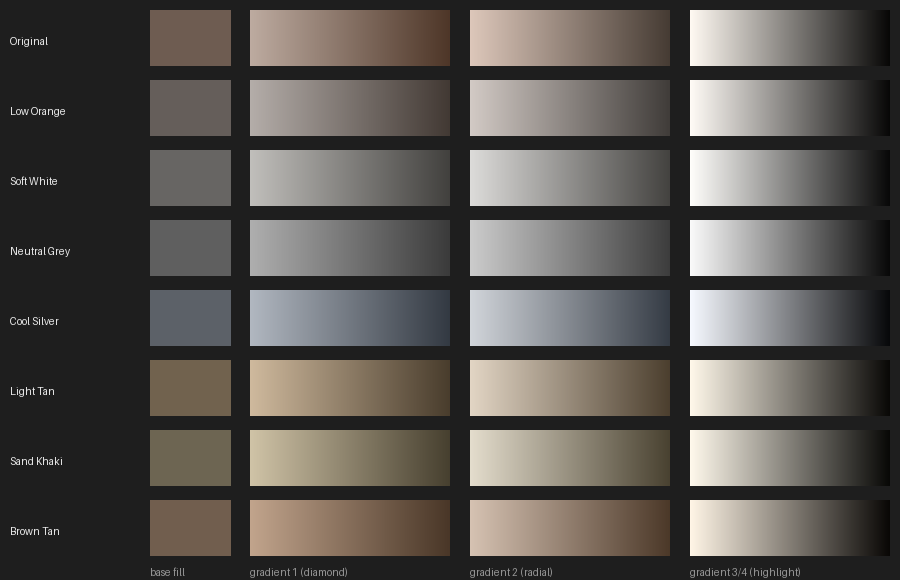
K2 – Cinematic Diffusion Actions
You can download my K1- Cinematic Diffusion Actions by clicking on the image above.